
PrestartAPMS Operations
Use your own email so every check is recorded under your name.
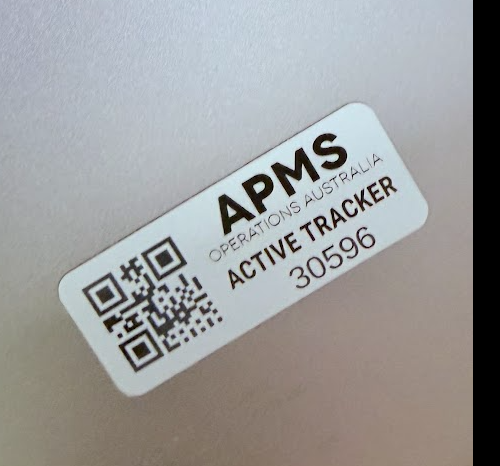
Look for this label.
Hold its QR code in the camera view below.
Starting camera…
Use this if the camera is unavailable or the label is damaged.
For hired gear without an APMS label. Choose the equipment type, take a photo of its plate, then complete the matching pre-start.
Take a clear photo of the plate showing the identifying number.
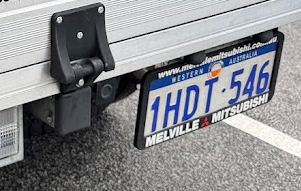
Example: photograph the complete registration plate so its number can be read.
Loading…
One checklist per equipment category. APMS assets use their category in EZO; hire equipment uses the type selected on the scan page.
Scan APMS gear or identify hire gear, then complete its pre-start in this web page.
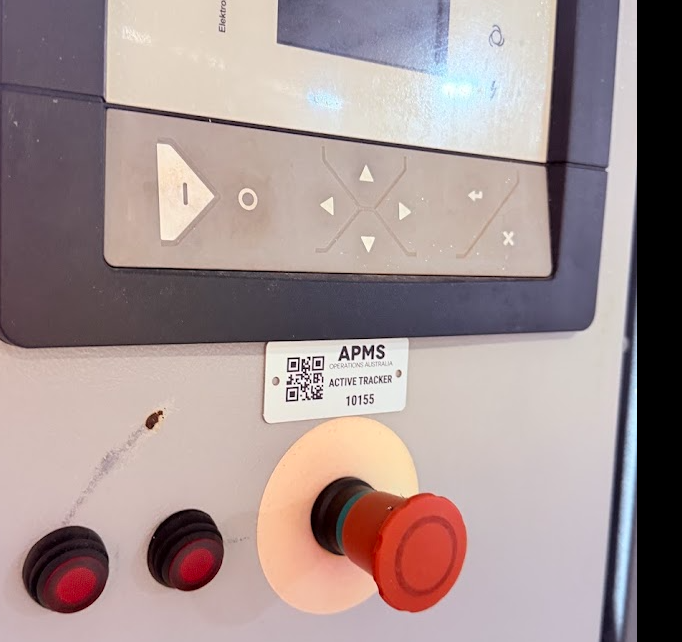
A real APMS asset label (label 10155). The camera starts when you sign in; you can also type its printed number.
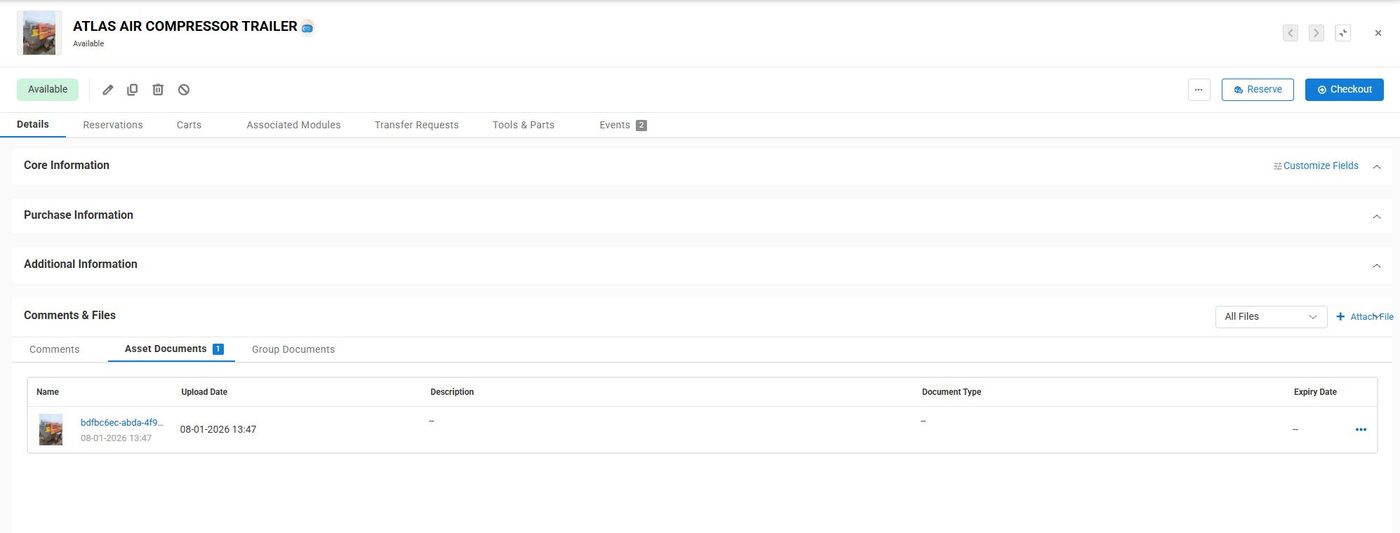
The EZO asset page for record #989. On a numbered asset, the first completed pre-start fills a blank Prestart History field with a link to its complete history in this app.
Email sign-in, asset lookup, hire equipment, category checklists, defect notes, meter readings, records, per-item history, the automatic EZO history link for APMS assets, and admin tools are available. An APMS asset's completion is emailed to the person currently booked out to it. Reported faults, including hire faults, are also emailed to equipment@apmseng.com.au.